
Step-by-step instructions for connecting ConnectWise Manage to SuperIT
This guide walks you through connecting ConnectWise Manage to SuperIT. The integration syncs companies, contacts, and tickets so your team can work in SuperIT while staying aligned with ConnectWise.
Prerequisites
- ConnectWise Manage admin access
- SuperIT manager team account
- About 15-20 minutes for setup
Step 1: Gather ConnectWise Information
Before starting the SuperIT connection, collect these values from your ConnectWise environment:
Required Information
- Company ID: Your ConnectWise company identifier used at sign-in
- API URL: Your ConnectWise host or base URL
- Public Key: API public key for authentication
- Private Key: API private key for authentication
Finding These Values
Company ID
- Use the same company identifier shown on your ConnectWise login screen
API URL
- Use the ConnectWise host or base URL your team signs into
- Examples:
https://na.myconnectwise.netor your hosted/on-prem ConnectWise URL - Do not include extra paths such as
/v4_6_release
Step 2: Create a Security Role for SuperIT
Create a dedicated security role for the API member. Follow a least-privilege approach to providing access.
- In ConnectWise, go to System -> Security Roles
- Click + to create a new role
- Enter a name such as
SuperIT API - Save the role
- For all modules not listed below, leave access set to None
Recommended Permissions
Use these permissions as the starting point for SuperIT:
| Module | Item | Access |
|---|---|---|
| Companies | Company Maintenance | Inquire - All |
| Companies | Contacts | Inquire - All |
| Companies | Configurations | Inquire - All |
| Companies | Manage Attachments | Add - All, Edit - All, Inquire - All |
| Companies | Note | Add - All, Edit - All, Inquire - All |
| Companies | Team Members | Inquire - All |
| Finance | Agreements | Inquire - All |
| Service Desk | Close Service Tickets | Add - All, Edit - All, Inquire - All |
| Service Desk | Service Tickets | Add - All, Edit - All, Inquire - All |
| Service Desk | Service Ticket - Dependencies | Inquire - All |
| Service Desk | Merge Tickets | Add - All, Edit - All, Inquire - All |
| Service Desk | Resource Scheduling | Add - All, Edit - All, Inquire - All |
| Service Desk | Resource Scheduling | Add - All, Edit - All, Inquire - All |
| Time & Expense | Time Entry | Add - My, Edit - My, Inquire - All |
| System | Member Maintenance | Inquire - All |
| System | Table Setup | Inquire - All |
Notes on These Permissions
- Company Maintenance allows SuperIT to read company records
- Contacts allows SuperIT to read related contacts and support contact-linked workflows
- Service Tickets and Close Service Tickets allow ticket sync and status updates
- Service Ticket - Dependencies allows SuperIT to access ticket attachments
- Table Setup is commonly required to read boards, statuses, and callback-related settings
Table Setup Customization
Some ConnectWise versions show a customize link next to System -> Table Setup.
- If your UI exposes this option, keep access focused on company, service board, status, and other service-desk-related setup values where possible
- If you are unsure, leave the role at the module-level settings above, test the integration, and tighten it later if needed
Step 3: Create the API Member
- Go to System -> Members
- Open the API Members tab
- Click + to create a new API member
- Complete the required fields:
- Member ID:
superitor similar - Member Name:
SuperIT Integration - Role ID: the security role you created in Step 2
- Member ID:
- Fill in the other required fields based on your ConnectWise defaults
- Save the API member
API Member Tips
- Use a dedicated API member instead of a personal user account
- Give the member access broad enough to see the companies and tickets you want to sync
- If you restrict the member by territory, board, or business unit, those restrictions can limit what SuperIT can import
Step 4: Generate API Keys
- Open the API member you just created
- Go to the API Keys tab
- Click + to create a new key pair
- Enter a description such as
SuperIT - Save the key
- Copy the Public Key and Private Key immediately
Save the private key now
ConnectWise only shows the private key once. If you lose it, create a new key pair.
Step 5: Configure the Connection in SuperIT
Add the ConnectWise Connection
- Log into SuperIT as a manager team member
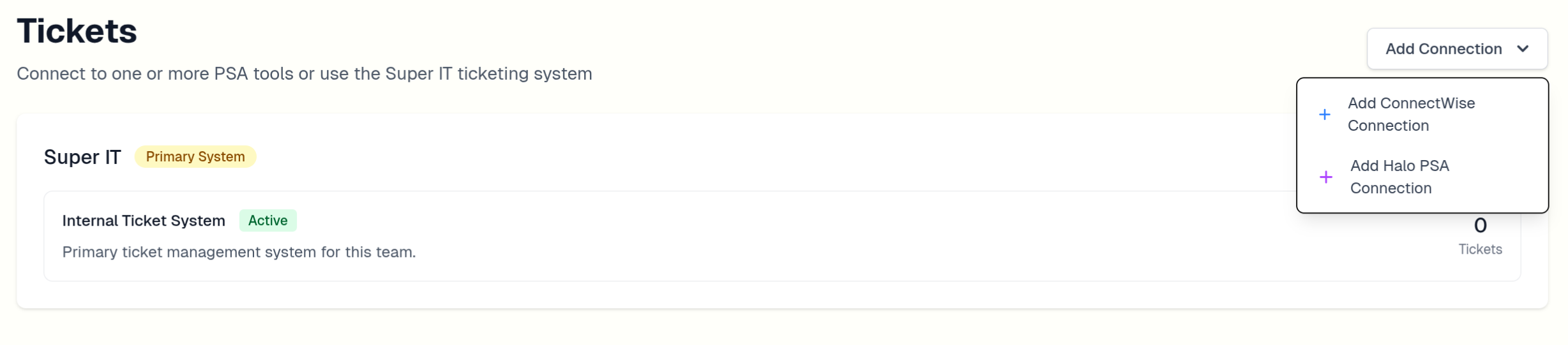
- Navigate to PSA -> Connections
- Click Add Connection -> ConnectWise
- Enter the connection details:
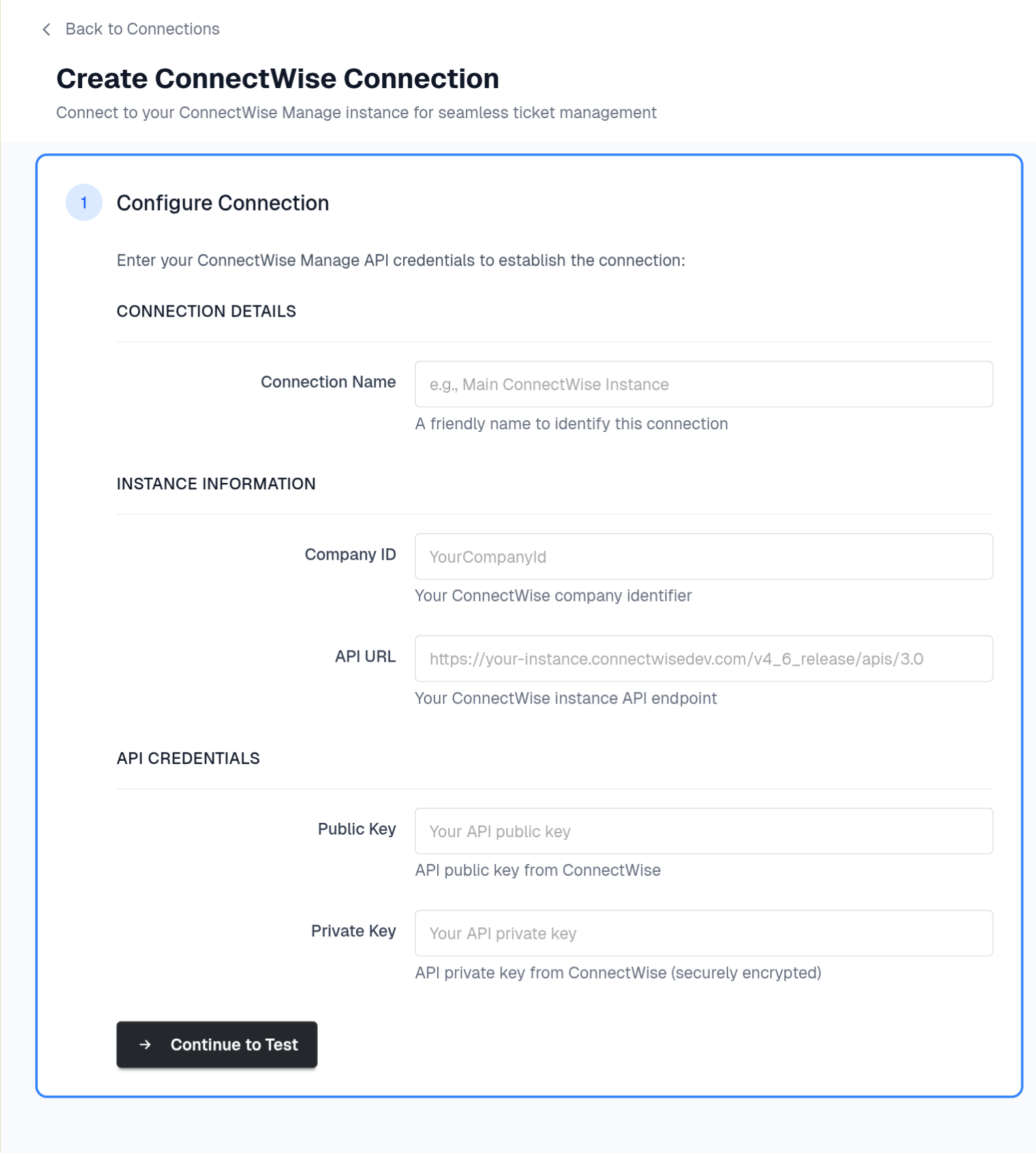
Connection Name: Descriptive name such as ConnectWise
Company ID: Your ConnectWise company ID
API URL: Your ConnectWise base URL
Public Key: API public key from ConnectWise
Private Key: API private key from ConnectWise
Test the Connection
- Click Continue to Test
- Confirm the test succeeds:
- ✅ Authentication successful
- ✅ API access confirmed
- ✅ Company information retrieved
- Fix any errors before saving
Save the Connection
- Click Save Connection
- Verify the connection appears in the PSA connections list
- Confirm the status shows as active or connected
Step 6: Run the Initial Sync
Sync Companies
- Open the ConnectWise connection in SuperIT
- Click Sync Companies
- Wait for the first sync to finish
Verify Company Data
- Open the Companies tab in the connection
- Confirm expected companies appear
- Spot-check names and contact details
Sync Tickets
- Click Sync Tickets
- Monitor progress for the initial import
- Expect larger environments to take longer on the first run
Step 7: Configure Webhooks
Webhooks are recommended because they reduce sync delay and keep ticket changes moving into SuperIT faster.
Enable Webhooks in SuperIT
- Open the ConnectWise connection settings in SuperIT
- Navigate to Webhooks
- Copy the Inbound Webhook URL
Create the Integrator Login & Callback Connection in ConnectWise
ConnectWise setup screens vary a bit by version, but the most common path is through setup tables.
- In ConnectWise, go to System -> Setup Tables
- Search for Integrator Login and open it
- Click + to create a new Integrator Login
- Complete the required fields:
- Username:
superit_webhookor similar - Password: Strong password of your choosing. (ConnectWise requires this field; SuperIT does not use it.)
- Access Level:
All Records - API Name: Service Ticket
- Callback URL: The Inbound Webhook URL we copied earlier (from the Webhooks tab in your ConnectWise connection settings)
- Service Board: The service board you wish to receive callbacks from
- Username:
- Save the Integrator Login
Integrator Login Notes
- ConnectWise requires a username and password even though SuperIT authenticates with API member keys
- If ConnectWise validates the endpoint, the webhook URL must be publicly reachable over HTTPS
- If setup fails, confirm your ConnectWise admin can edit System -> Setup Tables -> Integrator Login
Test Webhook Delivery
- Create or update a test ticket in ConnectWise
- Check SuperIT webhook logs or recent activity
- Confirm the change appears in SuperIT shortly after the update
Step 8: Verify the Integration
Check Sync Status
- Companies: Confirm expected companies are present
- Contacts: Spot-check a few synced contacts
- Tickets: Confirm recent tickets appear with expected data
- Sync Logs: Review any warnings or errors
Test Ticket Operations
- Open a ConnectWise ticket in SuperIT
- Change a status in SuperIT and confirm it syncs back
- Update a ticket in ConnectWise and confirm SuperIT receives the change
Test AI Integration
- Start a SuperIT conversation about a synced ConnectWise ticket
- Verify ticket context is available
- Confirm ticket updates still follow your ConnectWise workflow rules
Step 9: Configure Company-Team Links
Link ConnectWise companies to SuperIT teams so tickets route correctly.
- Navigate to Company Management in the connection
- Link each company to the correct Managed Team
- Configure service board and status mappings as needed
Detailed instructions: Company Management Guide
What to Expect
Sync Performance
- Initial company sync: Usually a few minutes
- Initial ticket sync: Can range from minutes to much longer in larger environments
- Ongoing sync: Faster with webhooks enabled
Data Handling
- Companies and contacts: Synced from ConnectWise into SuperIT
- Tickets: Imported and kept aligned with ongoing updates
- Attachments: May remain referenced in ConnectWise rather than fully synced
Team Experience
- ConnectWise tickets appear in SuperIT team views
- SuperIT can use ConnectWise ticket context
- Ticket updates stay aligned between both systems
Next Steps
- Configure company-team links for routing
- Set up field mapping for status and workflow alignment
- Review security settings for credential handling and rotation
Getting Help
Common Issues
- Connection failures: Re-check company ID, URL, and key values
- Missing data: Review API member scope and security role permissions
- Webhook issues: Confirm callback setup and public HTTPS reachability
Support Resources
- ConnectWise troubleshooting guide
- Field mapping documentation
- SuperIT support team for integration assistance
Connection successful? Continue with Company Management to configure routing, or review Field Mapping for workflow setup.